homeplexiptv

Never Miss A Show, Never Miss A Game! 15,000+ Global Channels/Streams Works on Most Devices

How To Use

IPTV Smarters App

What is an IPTV Smarters

IPTV Smarters Pro is a powerful, versatile media player that delivers a smooth, high-quality viewing experience across multiple platforms. Designed for seamless usability, it supports a wide range of formats, including M3U and JSON playlists, enabling users to play their personally owned media from both local storage and remote sources. Whether for live streaming, video-on-demand, or audio playback. IPTV Smarters Pro provides a reliable, high-performance media experience without interruptions.

The following is a comprehensive list of devices supported by IPTV Smarters Pro.

Android

Android Phones, Android TV, Android TV Boxes, Android Fire TV Sticks, Nvidia Shield, and other Android sticks or devices.

Windows/macOS

Windows 8/10 and all versions of macOS, including the latest ones.

iOS Devices

IPTV Smarters Player is available on the App Store and supports iPhone, iPad, and Apple TV (tvOS). 

Smart TVs

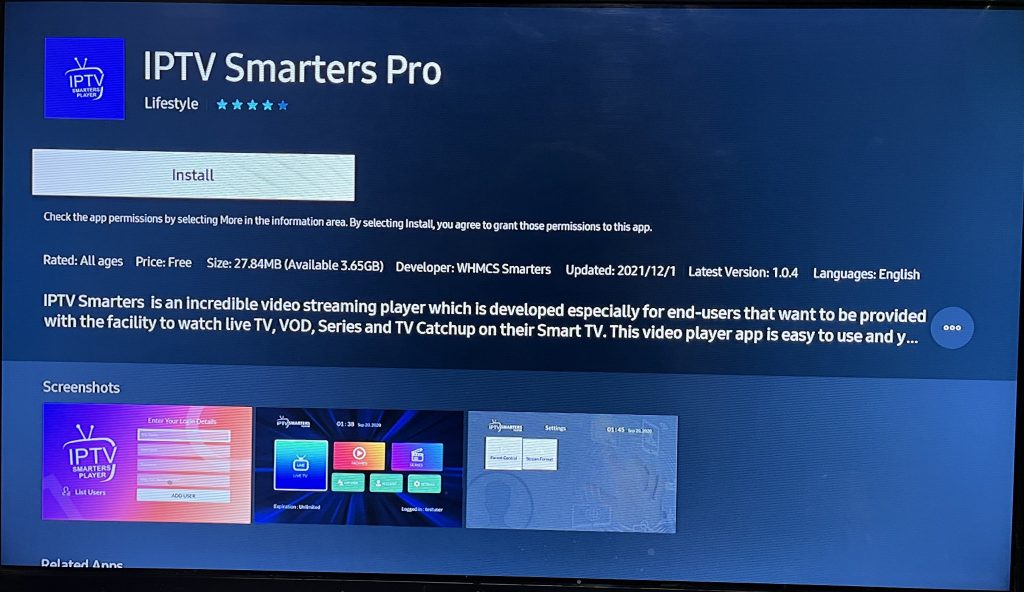
LG & Samsung (App available on the store to download).

Features Overview

User-Friendly Interface – Intuitive design for effortless media playback
Multiple Playlist Formats – Supports M3U, JSON, and other standard formats
High-Quality Playback – Enjoy smooth streaming with advanced video codecs
Cross-Platform Support – Available on Android, iOS, Windows, macOS, and more
Personalized Experience – Customize settings for an optimized viewing experience
 
Download links:
 

Setup IPTV Smarters via the Xtream Codes API

We recommend setting up via the Xtream Codes API because you will have the Catchup feature this way and do not need to add any EPG URL (it will load automatically).

STEP 1:

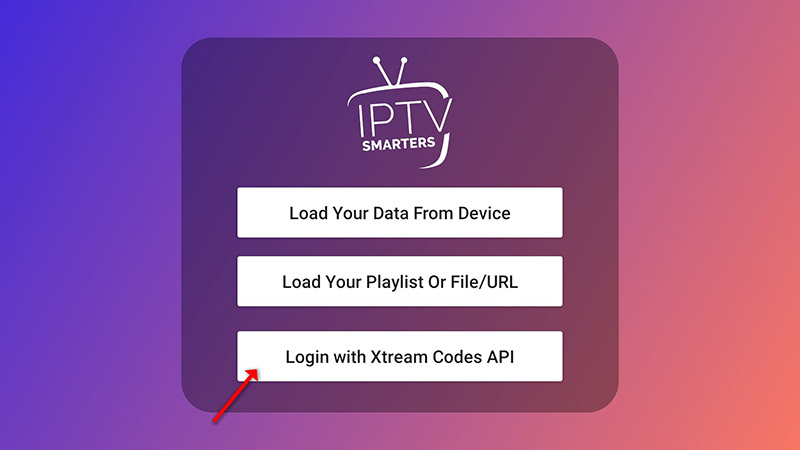
Open the app once downloaded and click on “Add user,” then click on “Login with Xtream Codes API“.

STEP 2:

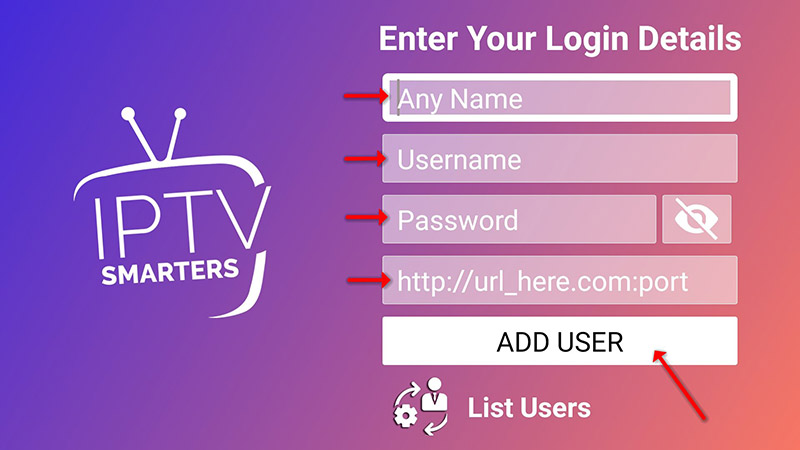
In this step, in the first box, select any name you want, for example, “IPTV Xtream”. In the second and third boxes, enter the “Username” and ” Password “for your M3U line, and the server URL, which can also be found on your M3U line.

Now, click on “ADD USER” to proceed to the next section.

STEP 3:

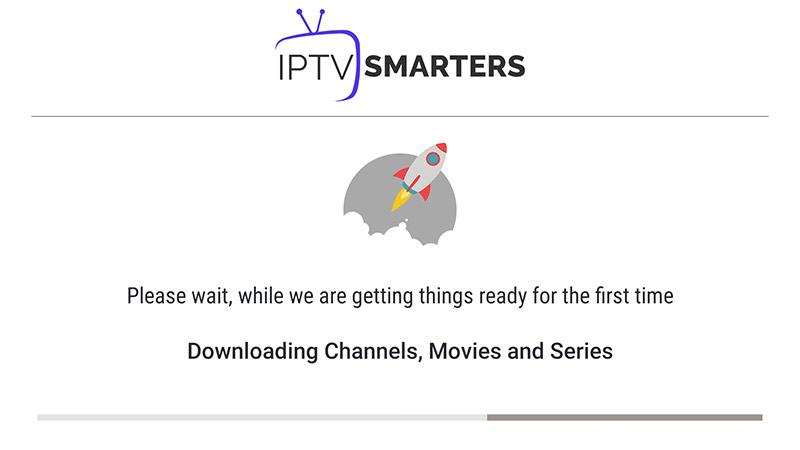
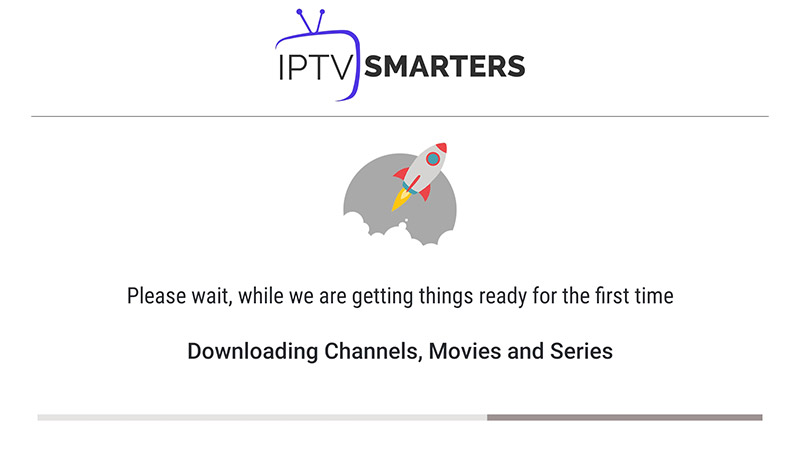
Wait for some seconds.

STEP 4:

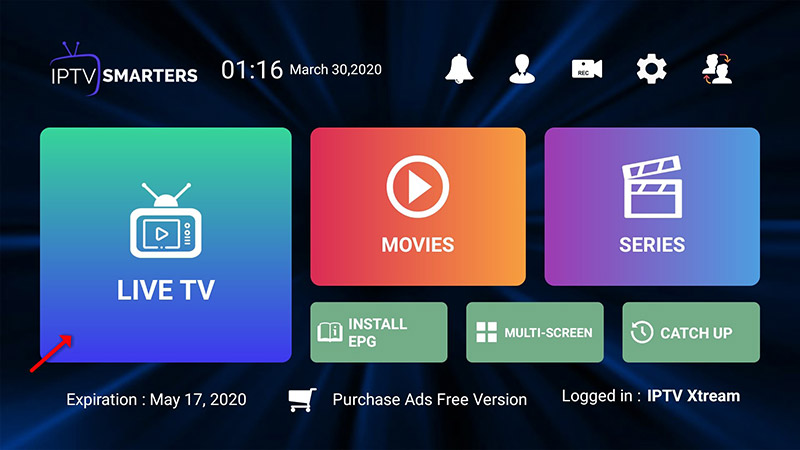
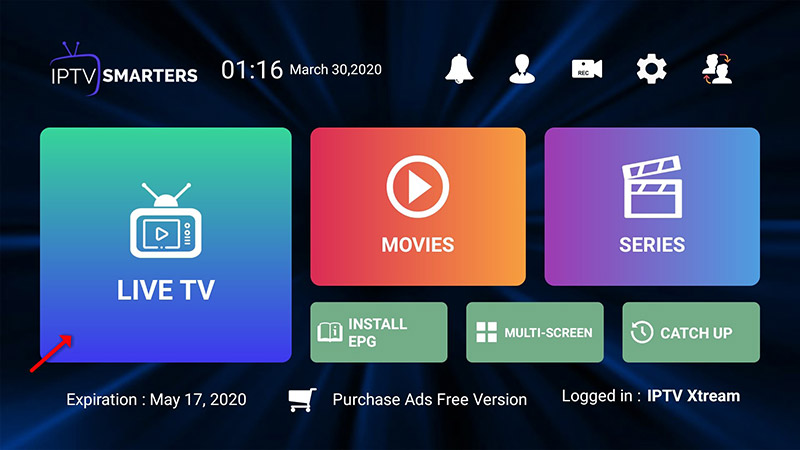
Now, click on the “Live TV” icon as depicted in the image via a red arrow.

STEP 5:

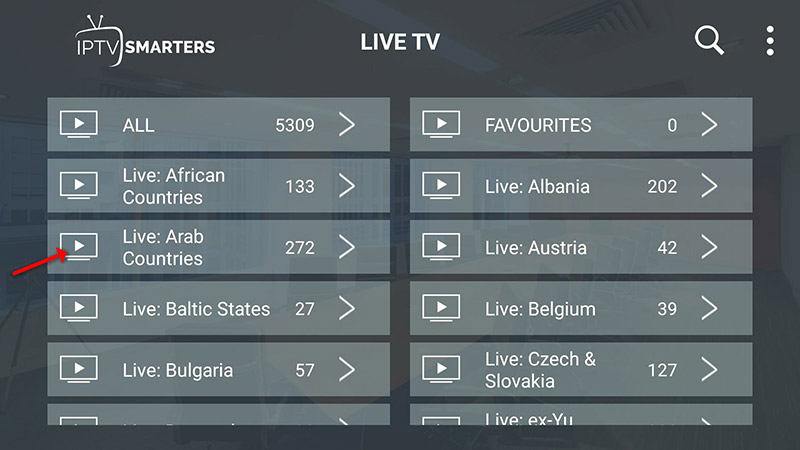
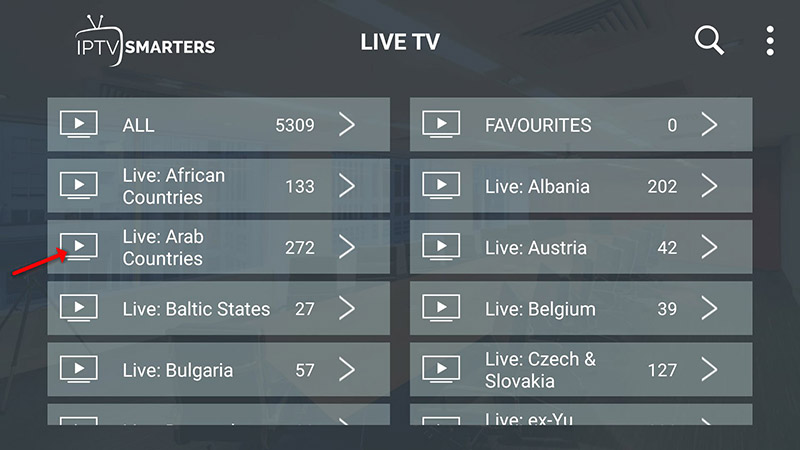
Now select the channel group you want to watch, then proceed to the next section.

STEP 6:

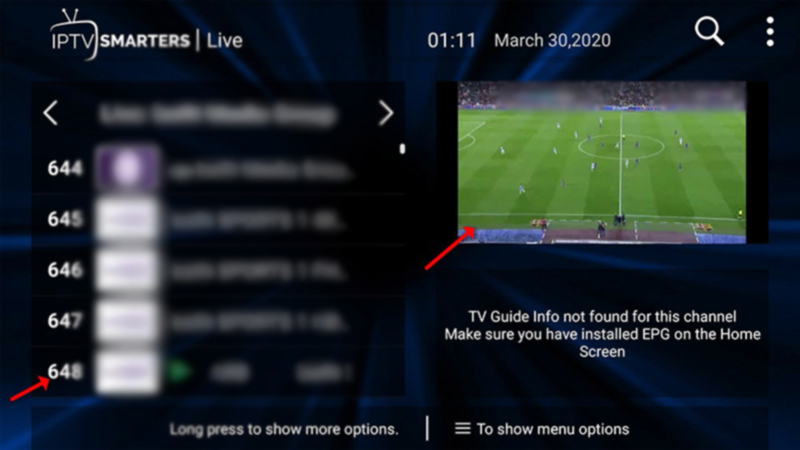
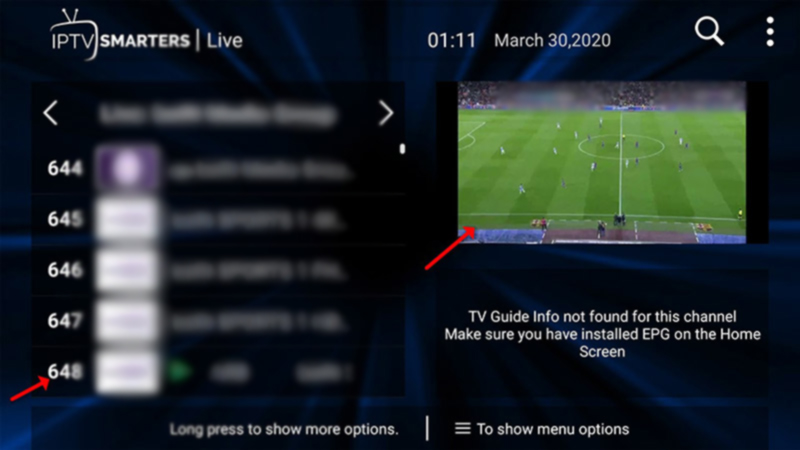
Now you must click the channel name, then double-click the small screen to turn it into a full-screen view as the final step.

  • This tutorial will guide you through the simple setup instructions for a Smart TV. The Live TV Store IPTV service uses a media controller app called ‘Smart IPTV’. This app is free to use for 7 days; after that, you will be asked to make a one-time donation of €5.49 (Euros) to support Smart IPTV app development.
  • To check whether your Smart TV is compatible with the Live TV Service, go to the Smart TV screen and search for the ‘Smart IPTV’ app. If the app is not displayed on the main screen, you may have to search for it in ‘All Apps’ or ‘Updates’.
  • Launch the ‘Smart TV’ app.
  • Make a note of the ‘MAC Address’ which is displayed on the screen.
  • Go to http://siptv.eu/mylist/ from any web browser.
  • Go to the section titled ‘Add external playlist links (URLs)’ and enter your Ma address and the unique Live TV Playlist URL into the ‘Link’ field.
  • Ensure the ‘countries’ dropdown selection on ‘Various’.
  • If you have any problems loading the playlist, you can check the ‘Save online’ checkbox.
  • Click on the ‘Add Link’ button.
  • Restart the ‘Smart IPTV’ app.


Also, IPTV Smarters is an incredible video streaming player explicitly developed for end-users who want to watch live TV, VOD, Series, and TV Catchup on their Smart TV. This video player app is easy to use yet highly efficient, featuring a powerful player, an attractive, very impressive layout, and, most importantly, a user-friendly interface.

Installation Guide For Samsung TV

Step 1: Access the Source

Press the Source button on your Samsung remote to get started.

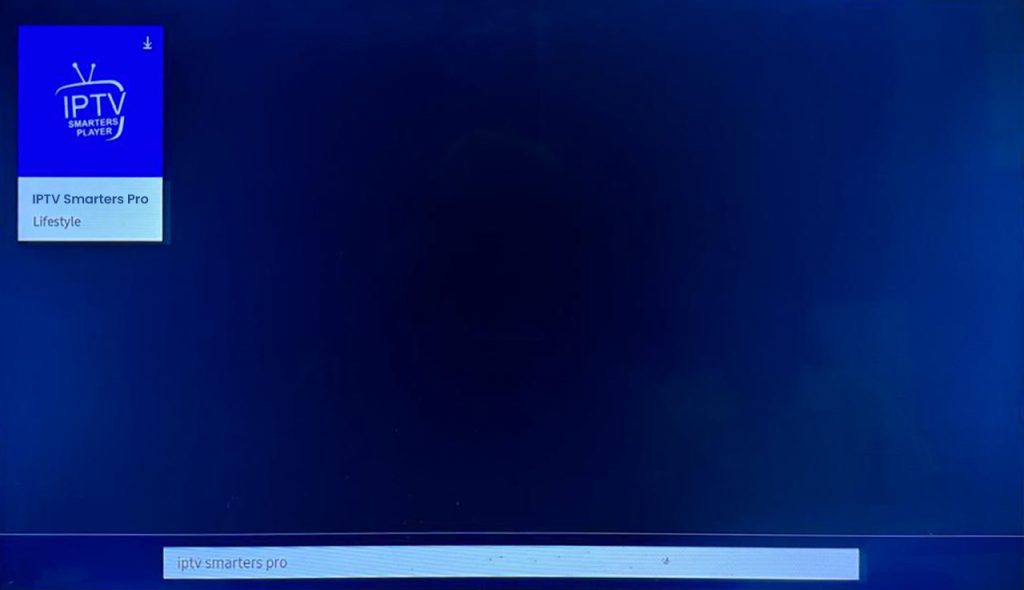
Step 2: Download IPTV Smarters Pro

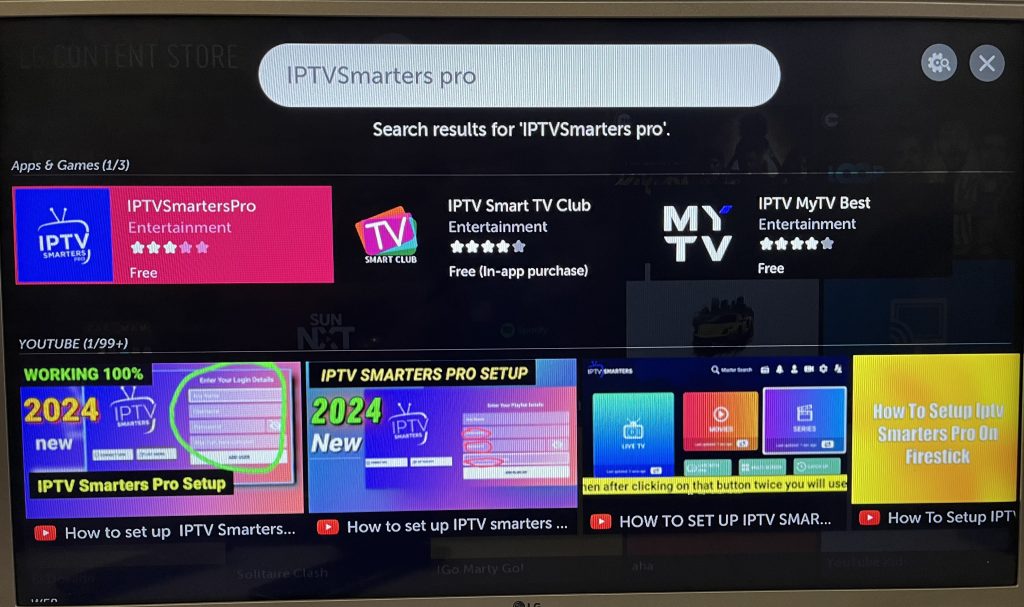
Navigate to Search and type in IPTV Smarters Pro to download the app.
Step 3: Log In to the App

Open the application and log in using your subscription details: Username, Password, and Portal URL.

Important Note:

Ensure that your service provider has their DNS registered with us for optimal performance. 

Please be aware that the Premium Version features are not available on Samsung Smart TVs.

Installation Guide for LG TV

Step 1: Access the Home Menu

Press the Home button on your LG remote to begin.

Step 2: Open the LG Content Store

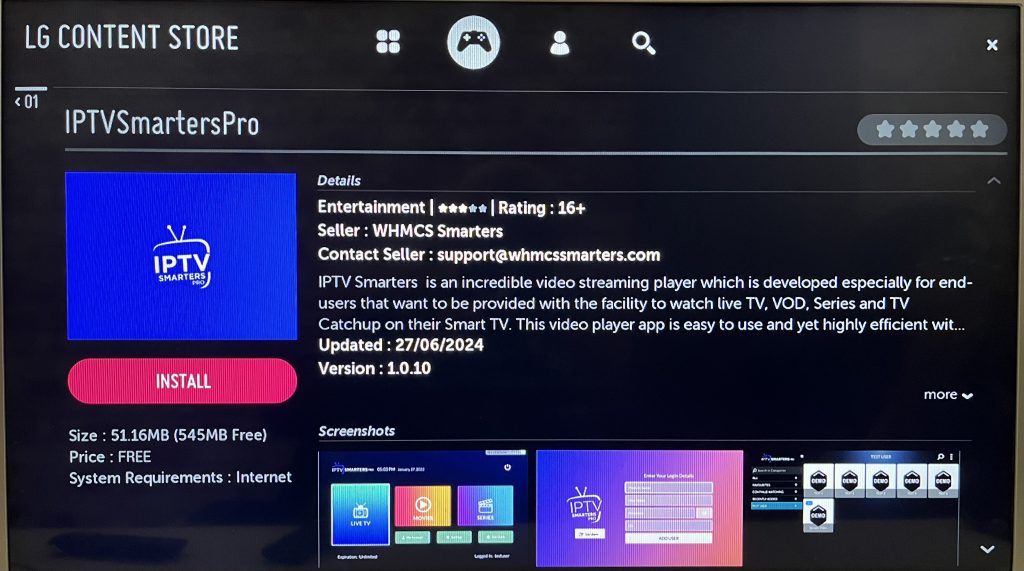
Please navigate to the LG Content Store and open it.

Step 3: Download IPTV Smarters Pro

Select the Search button, then type IPTV Smarters Pro to download the app.
Step 4: Log In to the Application

Open the application and log in using your subscription details: Username, Password, and Portal URL.

Important Note:

Please ensure that your service provider has their DNS registered with us for optimal performance.

Note: Premium version features are not available for LG Smart TVs.

  • Open the App Store.
  • In the App Store, tap the Search bar at the top of the screen.
  • Search GSE SMART IPTV (One of the best and highly used IPTV apps by Apple users).
  • Click the Install button to begin the installation.
  • After the installation is completed, tap Open to launch the GSE SMART IPTV app on your Apple device.
  • Click the Add Playlist button.
  • Then click the Remote Playlist File.
  • Enter the M3U Playlist URL we provided, then type the Playlist name. Then select the days for Channel Refresh and EPG Refresh. After entering the details, click the Save button.
  • Wait until the application loads all the channels. Now you can enjoy all your favorite channels with your family and friends.

IPTV Smarters is one of the most user-friendly IPTV player applications that provides you the facility to watch Live TV, VOD, Series, Catchup, and Multi-Screen on your Android Devices (Mobiles, Android Boxes, Fire TV Stick, etc.). One of the most interesting features in IPTV Smarters is Catchup. They are not many applications that provide Catchup, before we only have this feature in MAG boxes. Also, you have a Multi-Screen feature in which you can watch up to 4 channels simultaneously.

You can add IPTV channels to IPTV Smarters in two ways:

  1. Setup via Xtream Codes API.
  2. Setup via Playlist.

Setup IPTV Smarters via Xtream Codes API

We recommend setup via Xtream Codes API because you will have the Catchup feature this way and also do not need to add any EPG URL (it will load automatically).

STEP 1:

Start by downloading IPTV Smarters app through this URL:
https://www.iptvsmarters.com/iptv-smarters-5.0.apk
install the app on your Android device.

STEP 2:

Open the app once downloaded and click on “Add user” then click on “Login with Xtream Codes API“.

STEP 3:

In this step, in the first box, select any name you want for example “IPTV Xtream”. On the second and third boxes, enter the “Username” and the “Password” of your M3U line and the server URL which can also be found on your M3U line.

Now Click on “ADD USER” to proceed to the next section.

STEP 4:

Wait some seconds.

STEP 5:

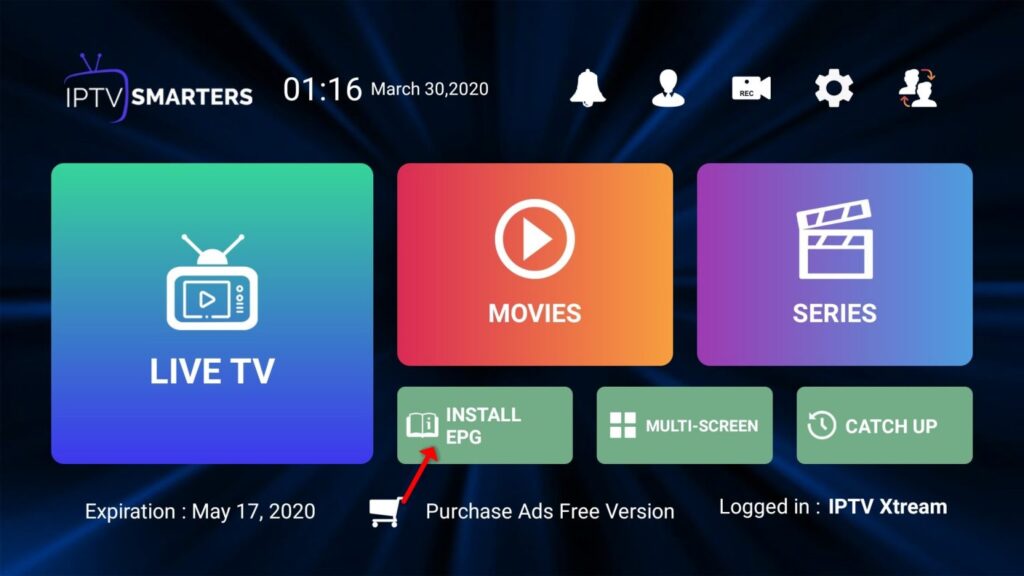
Now click on the “Live TV” icon as depicted in the image via a red arrow.

STEP 6:

Now you must select the channel group that you want to watch and proceed to the next section.

STEP 7:

Now you must click on the channel name and then double click on the small screen to turn into the full screen as the final step.

STEP 8:

To add EPG no need to add any EPG URL, Just click on “Install EPG“.

Setup IPTV Smarters via Playlist

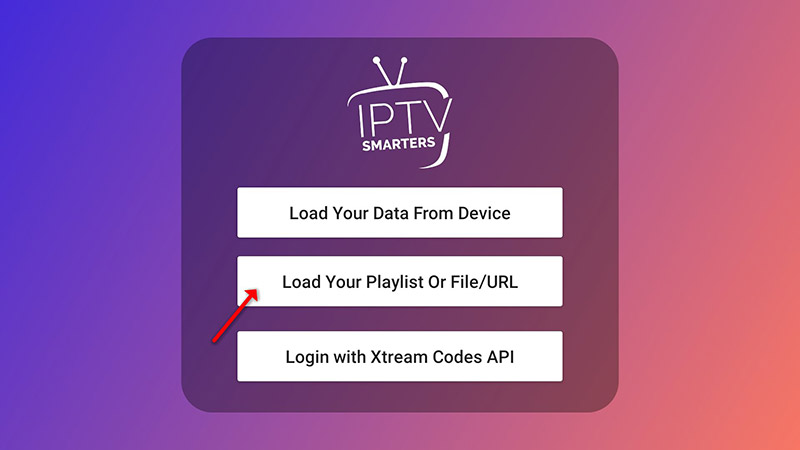
If you don’t have an Xtream Code API, you can use an M3U URL and choose to Load Your Playlist or File URL.

STEP 1:

Open the app once downloaded and click on “Add user” then click on “Login with Playlist“.

STEP 2:

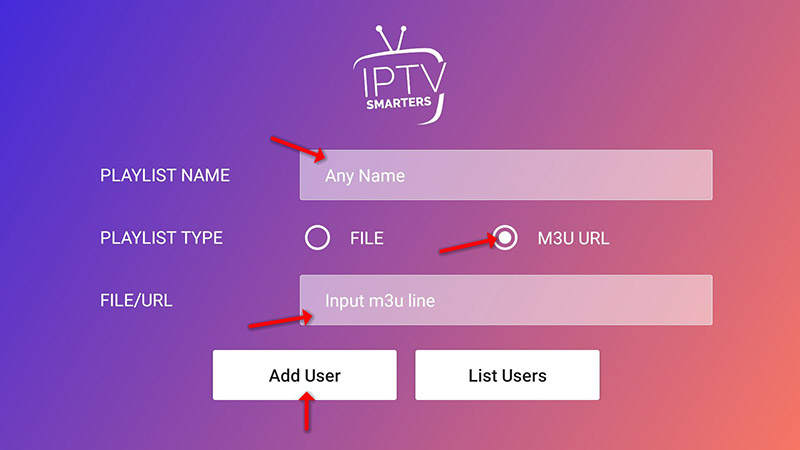
In this step, in the first box, select any name you want for example “IPTV Playlist”.
Select “M3U URL” and enter the M3U URL which you get from your IPTV provider.

STEP 3:

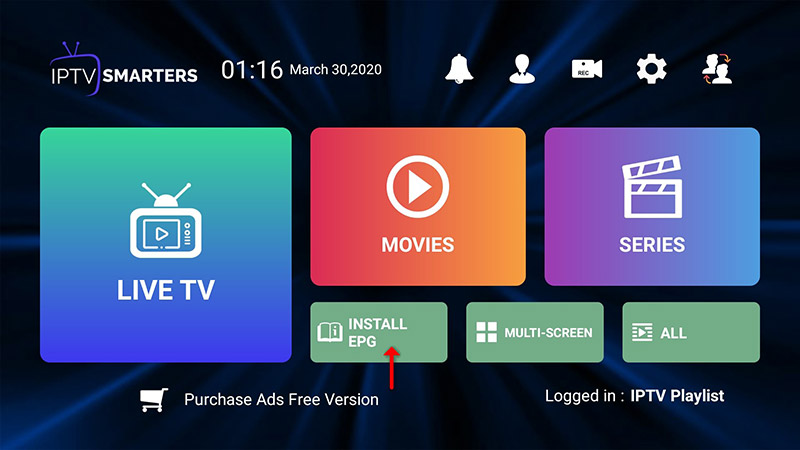
To add EPG click on “Install EPG”  and enter the EPG url.

STEP 4:

Now click on the “Live TV” icon, select channels group then the channel you want to watch.

  • Make sure your MAC address was registered at our server HomePlex
  • When the box is being loaded the main portal screen appears. After that click on “settings”, press remote button “SETUP/SET”.
  • Go to the Setting menu. Click on System settings and click on “Servers”
  • Select “Portals“
  • In the “Portal 1 name” line enter the name of sever HomePlex
  • In the “Portal 1 URL” enter the portal address that we send it to you. Please double check all characte.
  • When all the operations listed above is done, then press “OK”.
  • When all the steps listed above are done press”EXIT” 2 times on the remote control and restart the portal, Now everything is ready to start watching Live TV.
  •  
  • Download MyTVOnline 2 to connect with our service.
  • You have two options: add a portal or m3u (URL) playlist. You can set the nickname to any name you prefer.
  • Click “Connect”. Wait for a few minutes to connect to our service and you will receive all the channels associated with your account.
  •  
  • This is instruction For Enigma 2/ Linux installation, you need install putty to use it. Settings > Setup > System Network Device > Setup Adapter > Settings And get your IP address it starts with 192.168….
  • Go to your windows PC and Download Putty Software.
  • Open Putty
  • Add your IP address of your Device.
  • Add Port 23
  • Click on open
  • Your default login and password are root
  • Copy your line ( you will get it after you order your subscription ) wget -O /etc/enigma2/iptv.sh “your m3u link” && chmod 777 /etc/enigma2/iptv.sh && /etc/enigma2/iptv.sh
  • RIGHT CLICK MOUSE BUTTON after you enter your line press ENTER
  • Type reboot and your device will restart.
  •