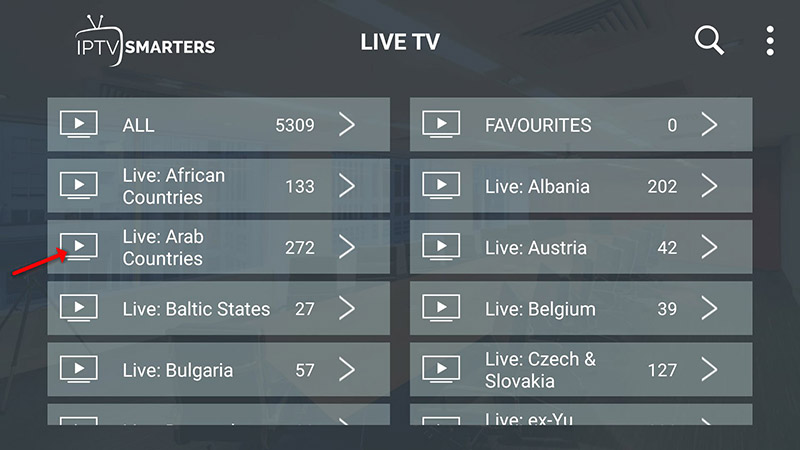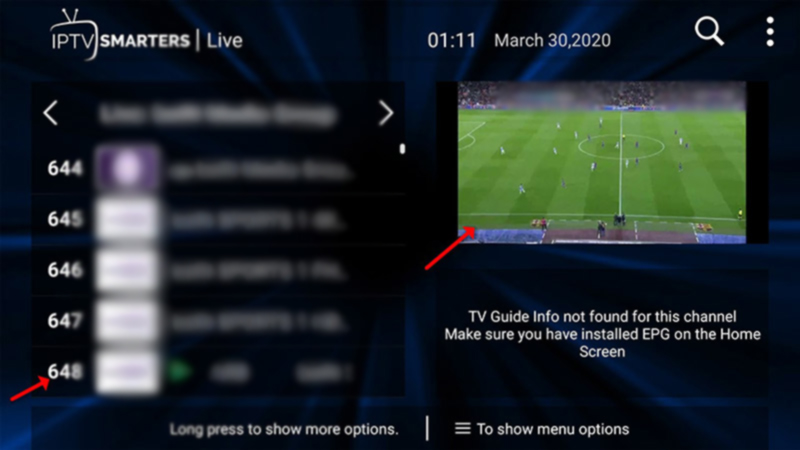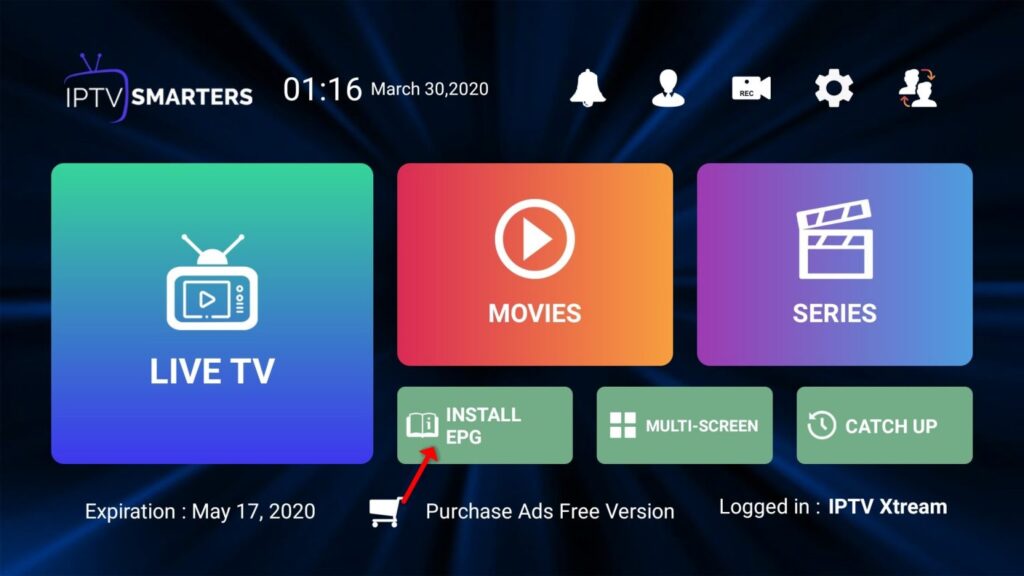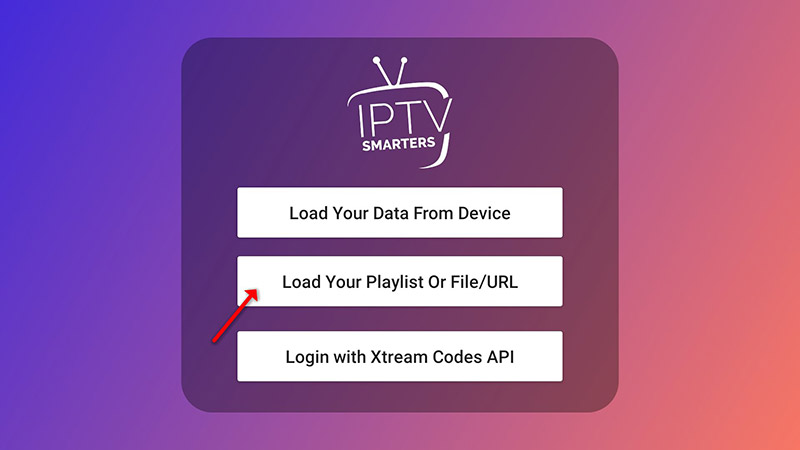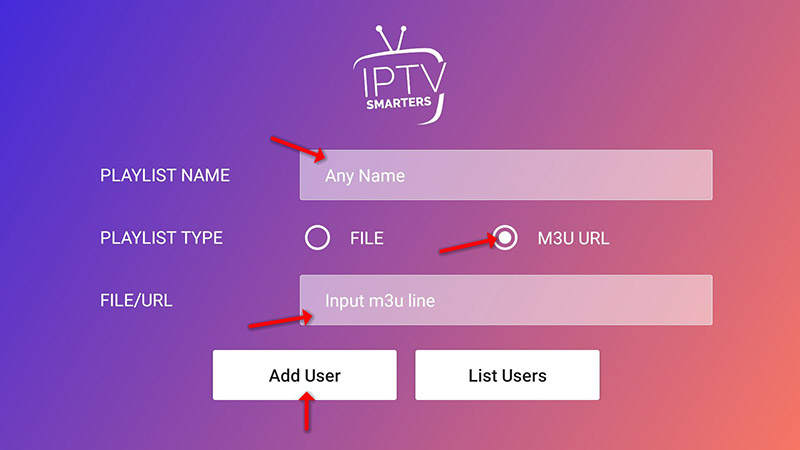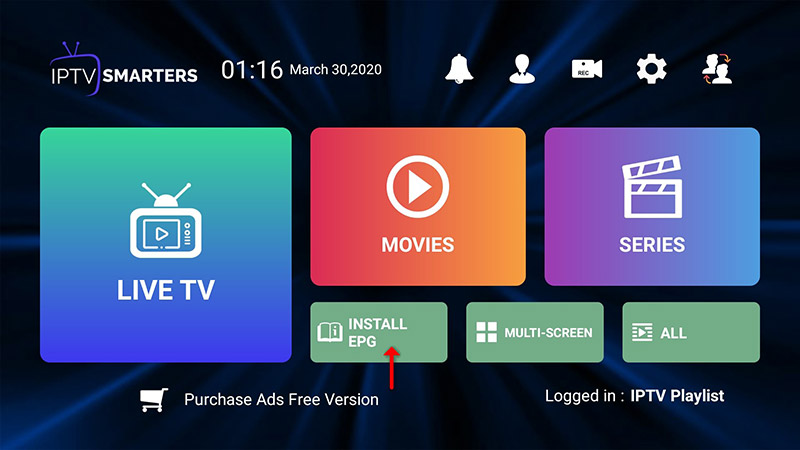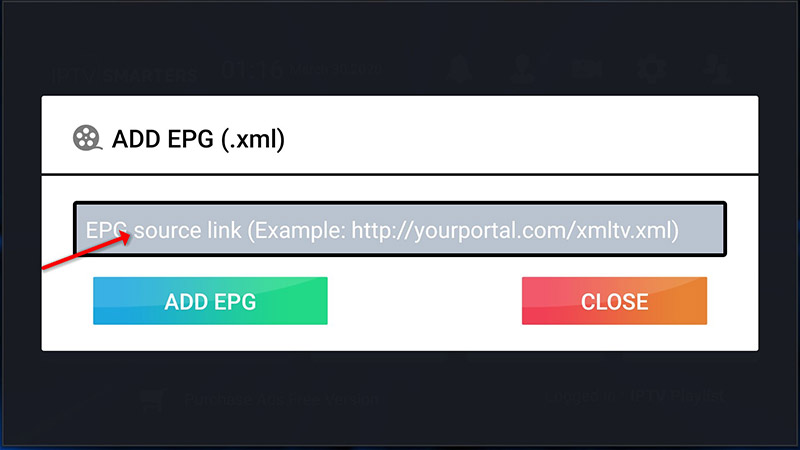
IPTV Smarters App
What is an IPTV Smarters
IPTV Smarters Pro is a powerful, versatile media player that delivers a smooth, high-quality viewing experience across multiple platforms. Designed for seamless usability, it supports a wide range of formats, including M3U and JSON playlists, enabling users to play their personally owned media from both local storage and remote sources. Whether for live streaming, video-on-demand, or audio playback. IPTV Smarters Pro provides a reliable, high-performance media experience without interruptions.
The following is a comprehensive list of devices supported by IPTV Smarters Pro.
Android
Windows/macOS
iOS Devices
Smart TVs
LG & Samsung (App available on the store to download).
Features Overview
 User-Friendly Interface – Intuitive design for effortless media playbackMultiple Playlist Formats – Supports M3U, JSON, and other standard formatsHigh-Quality Playback – Enjoy smooth streaming with advanced video codecsCross-Platform Support – Available on Android, iOS, Windows, macOS, and morePersonalized Experience – Customize settings for an optimized viewing experience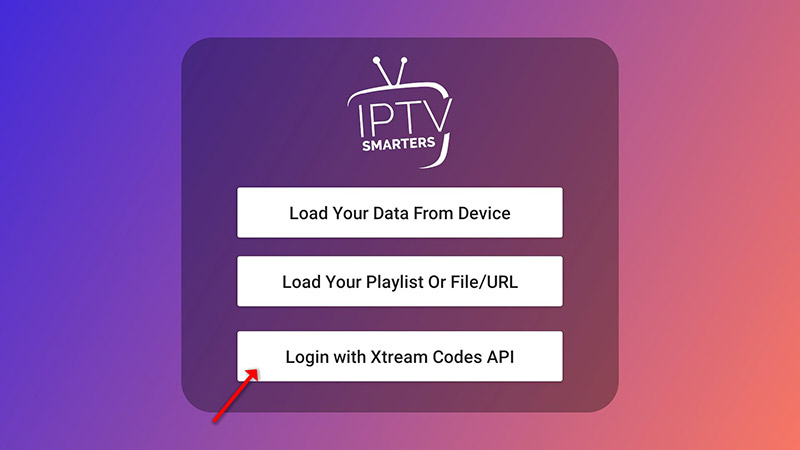
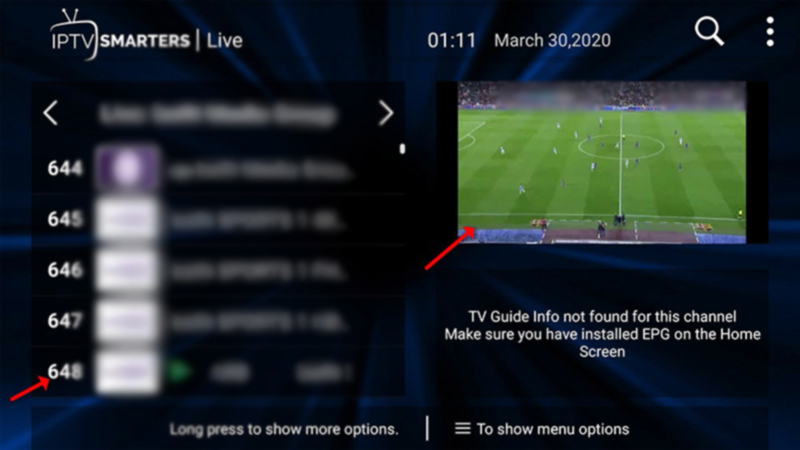
LG, Samsung, Fire TV
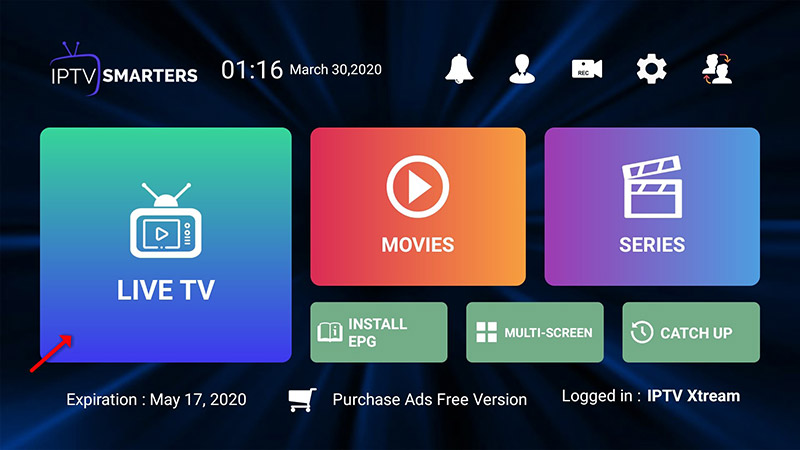
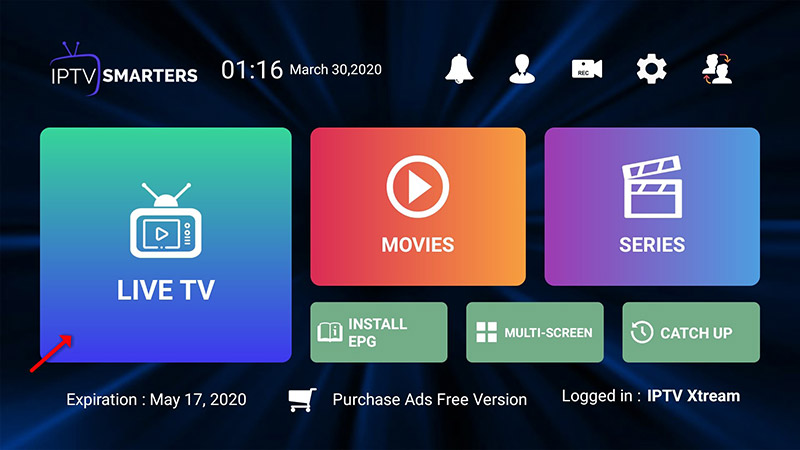
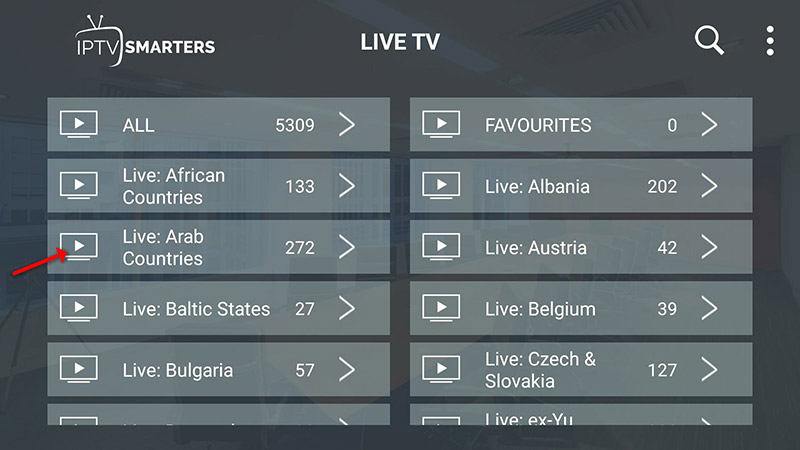
Also, IPTV Smarters is an incredible video streaming player explicitly developed for end-users who want to watch live TV, VOD, Series, and TV Catchup on their Smart TV. This video player app is easy to use yet highly efficient, featuring a powerful player, an attractive, very impressive layout, and, most importantly, a user-friendly interface.
Installation Guide For Samsung TV
Step 1: Access the Source
Press the Source button on your Samsung remote to get started.
Step 2: Download IPTV Smarters Pro
Navigate to Search and type in IPTV Smarters Pro to download the app.
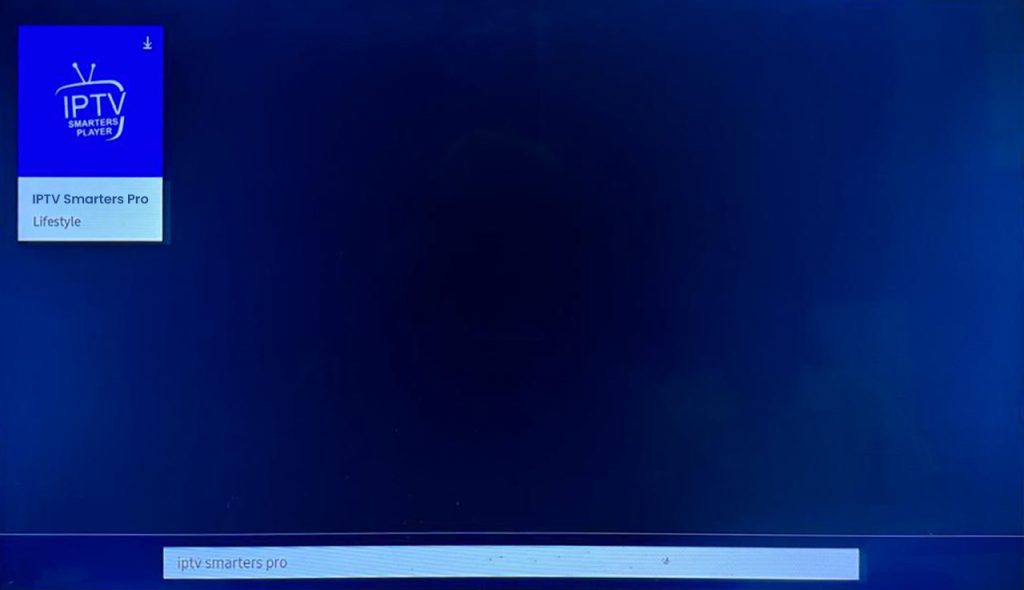
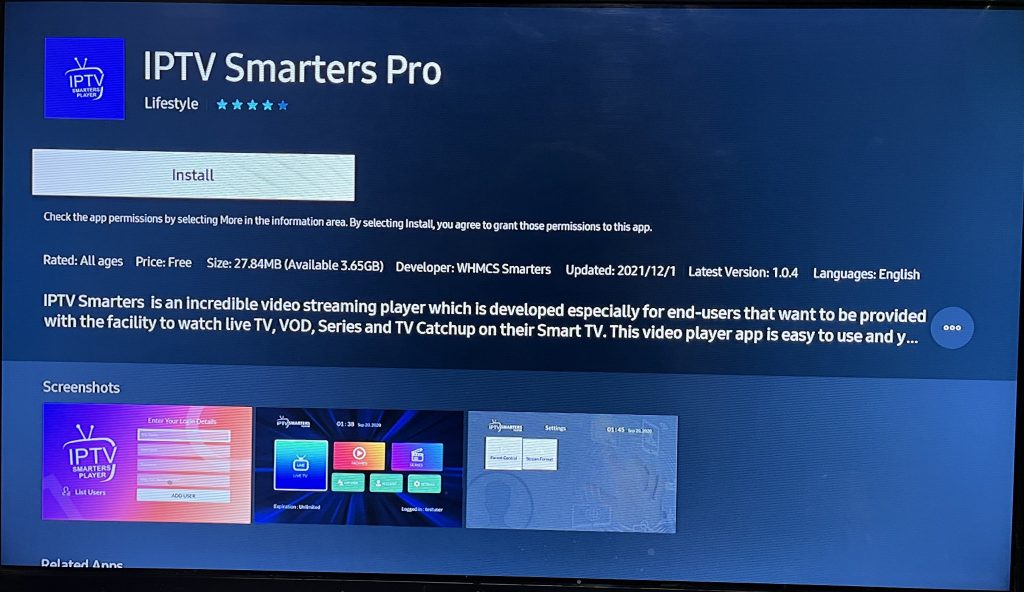 Step 3: Log In to the App
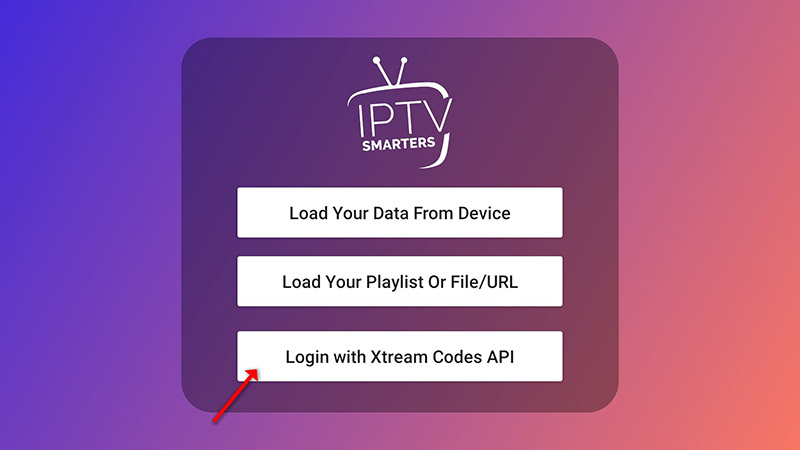
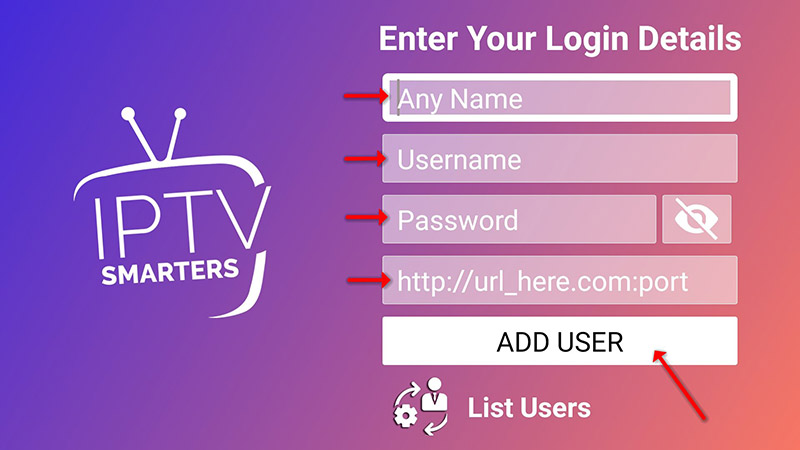
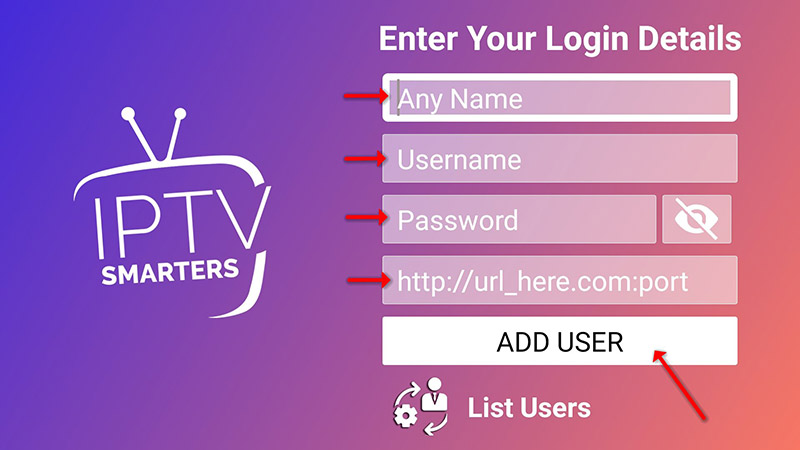
Open the application and log in using your subscription details: Username, Password, and Portal URL.
Important Note:
Ensure that your service provider has their DNS registered with us for optimal performance.
Please be aware that the Premium Version features are not available on Samsung Smart TVs.
Installation Guide for LG TV
Step 1: Access the Home Menu
Press the Home button on your LG remote to begin.
Step 2: Open the LG Content Store
Please navigate to the LG Content Store and open it.
Step 3: Download IPTV Smarters Pro
Select the Search button, then type IPTV Smarters Pro to download the app.
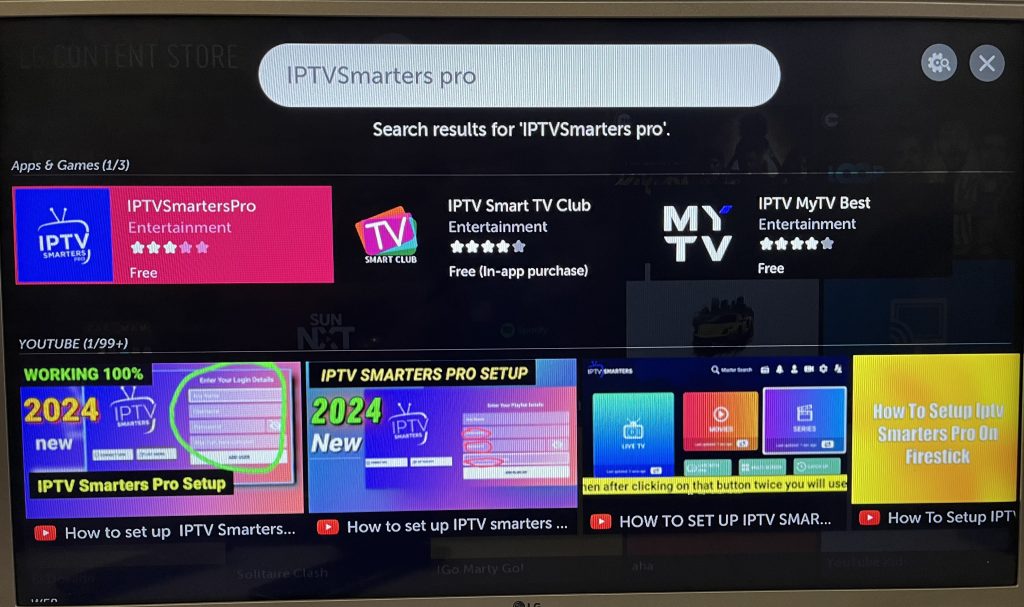
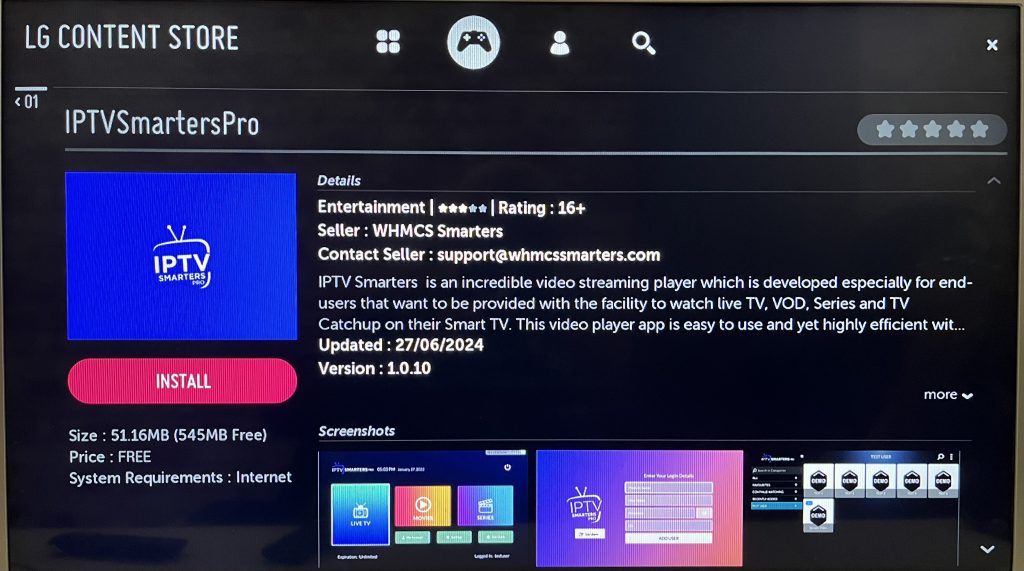 Step 4: Log In to the Application
Open the application and log in using your subscription details: Username, Password, and Portal URL.
Important Note:
Please ensure that your service provider has their DNS registered with us for optimal performance.
Note: Premium version features are not available for LG Smart TVs.
APPLE/IOS
ANDROID